Install Thin Client System
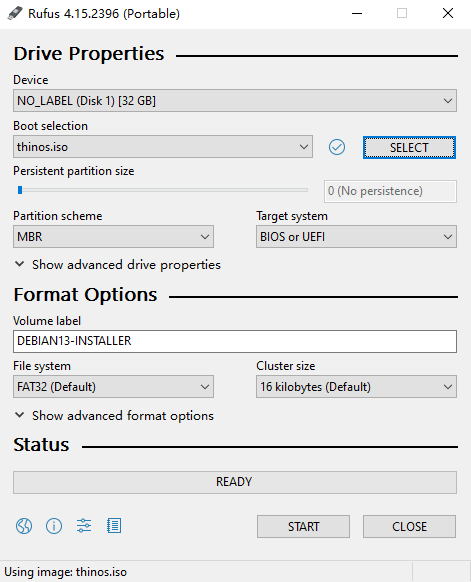
I. Create a Bootable USB Drive with rufus
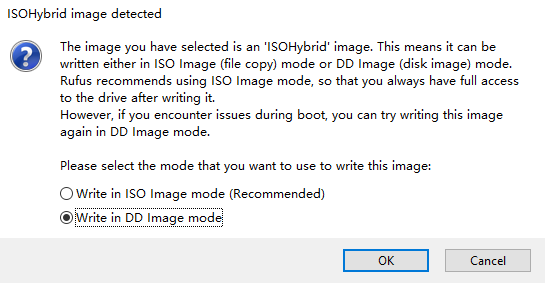
Note: Select DD mode.
II. Boot from USB Drive and Install the System
Use the boot shortcut key to boot from the USB drive.
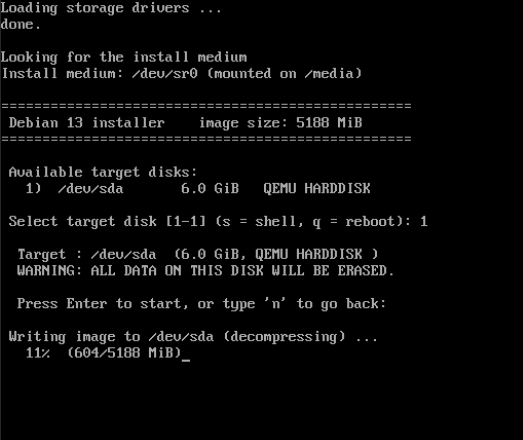
Steps to install thinos:
-
Enter the disk number and press Enter.
-
A warning that disk data will be overwritten appears; press Enter to start the installation.
-
Wait for the installation to complete, unplug the USB drive, and press Enter to reboot.
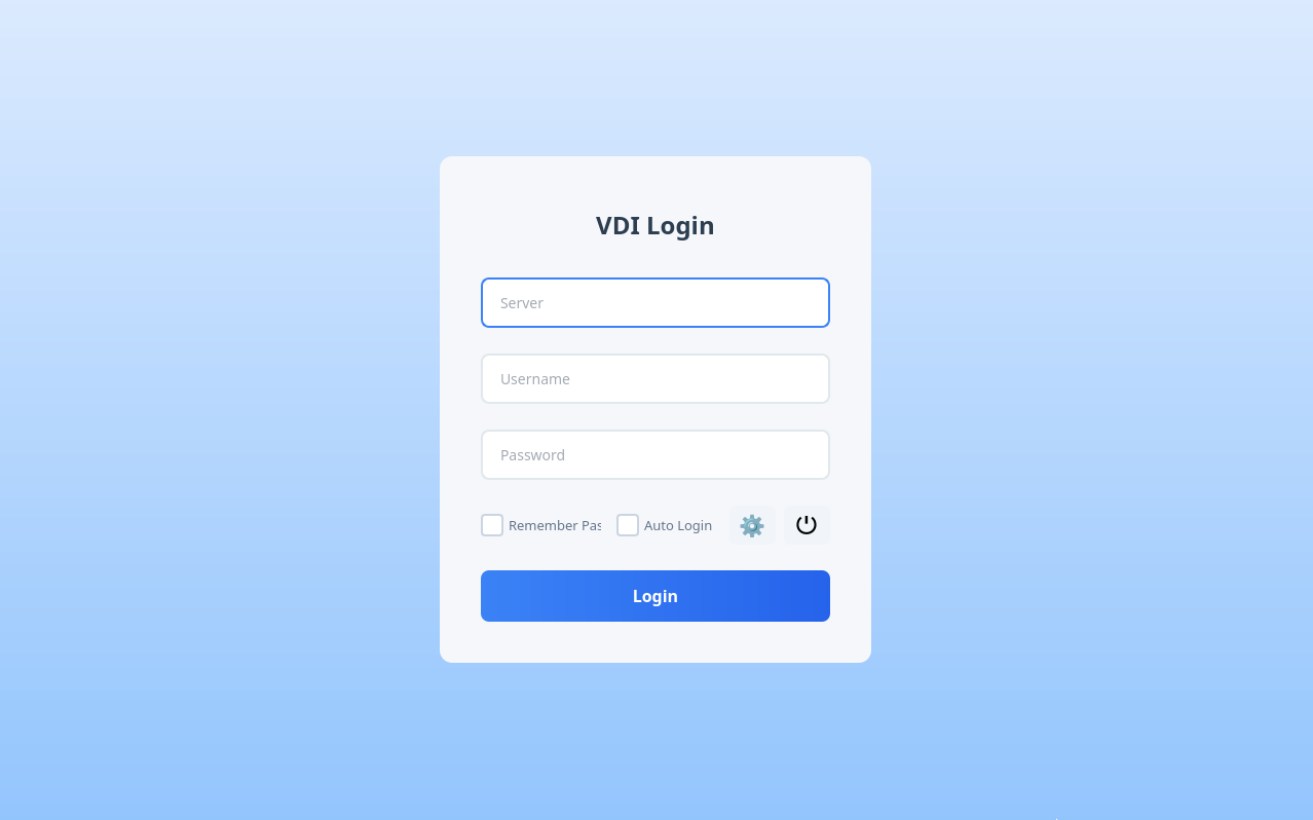
III. Configure the Thin Client System
Click the settings button and configure as needed.
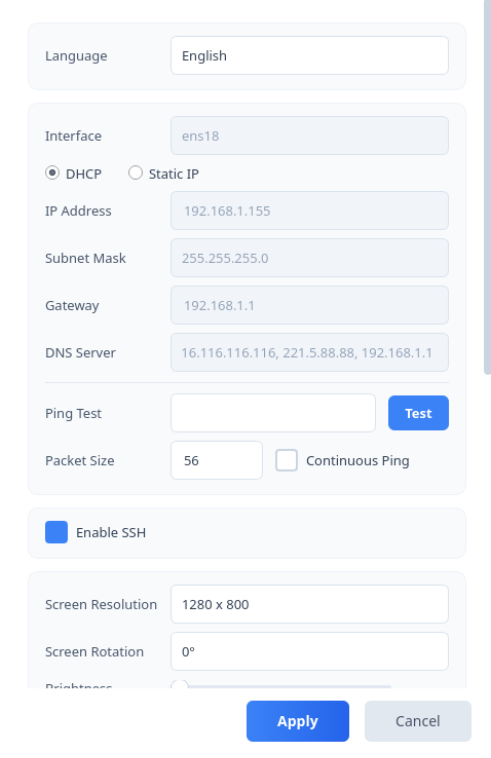
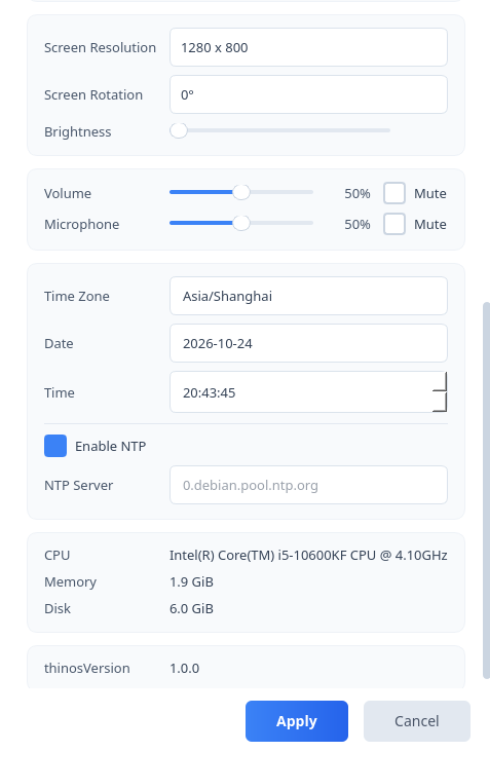
Configure the connection information on the login page.
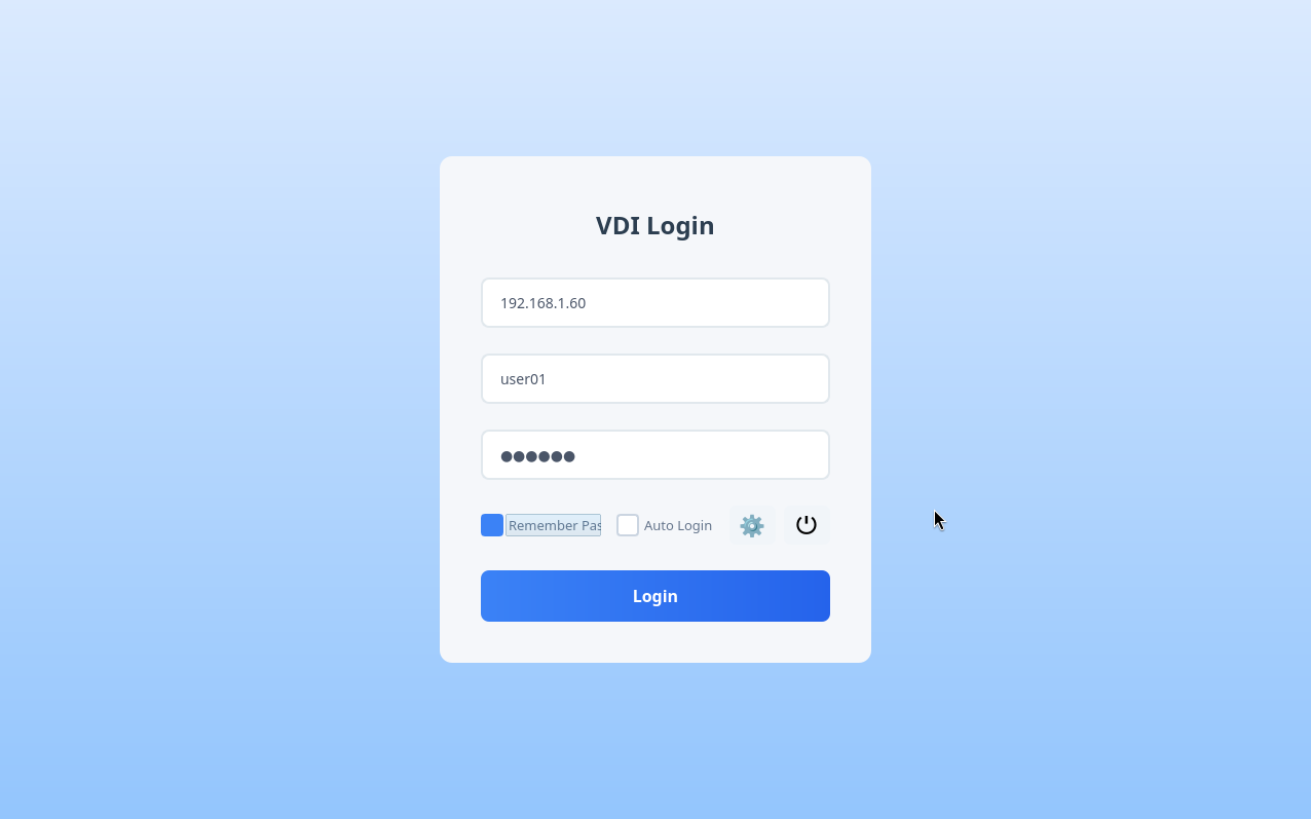
IV. Login
Click Login to enter the virtual machine list page.
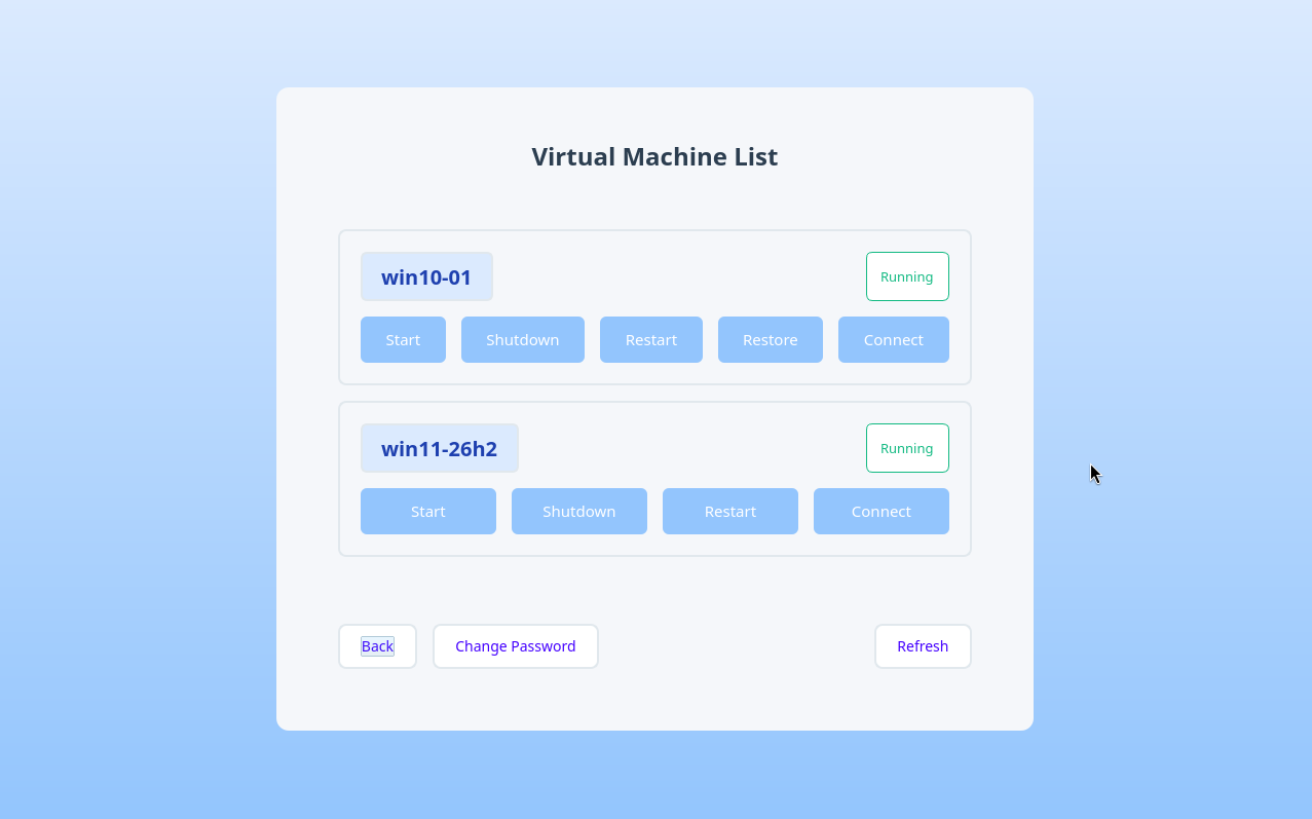
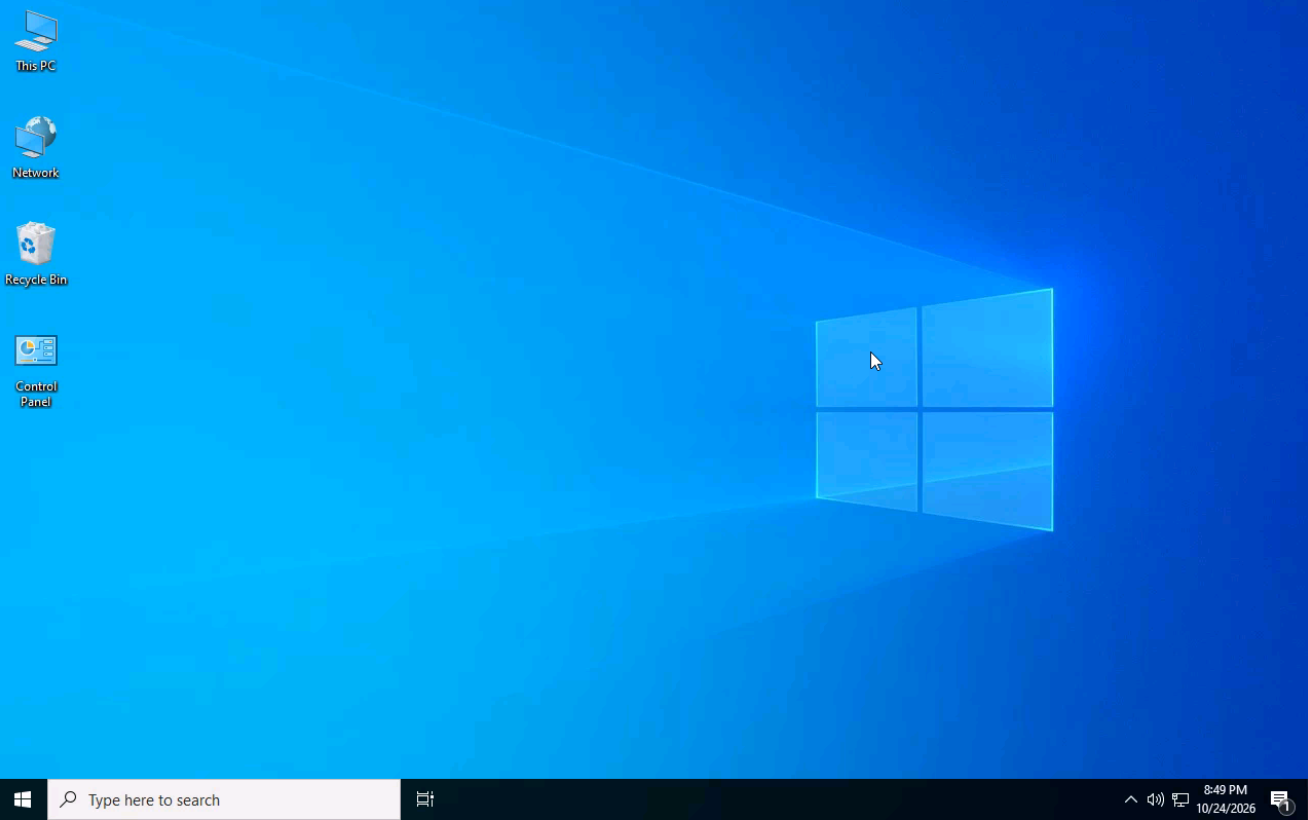
Click Connect to enter the virtual machine.
V. Toolbar
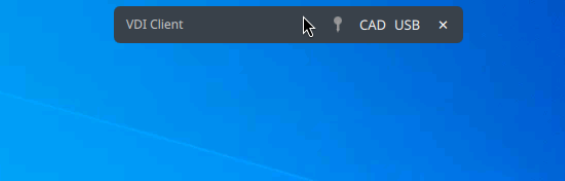
Move the mouse near the top of the screen to show the floating toolbar, which supports the CAD (Ctrl+Alt+Del) shortcut, USB device redirection, and disconnecting.
VI. Change User Password
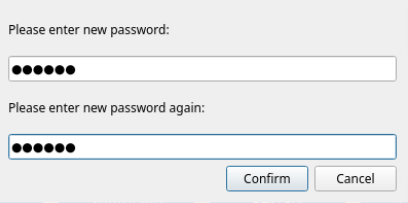
Click the change password button to change the user password.
VII. Operate Virtual Machines
Click the Start, Shut Down, Restart, or Restore (available only in restore mode) buttons, then click the Refresh button to update the virtual machine status.
After a virtual machine is started or restarted, it takes about 10-15 seconds before the user can click Connect to enter the virtual machine; otherwise, a connection failure will be reported.
VIII. User Lockout
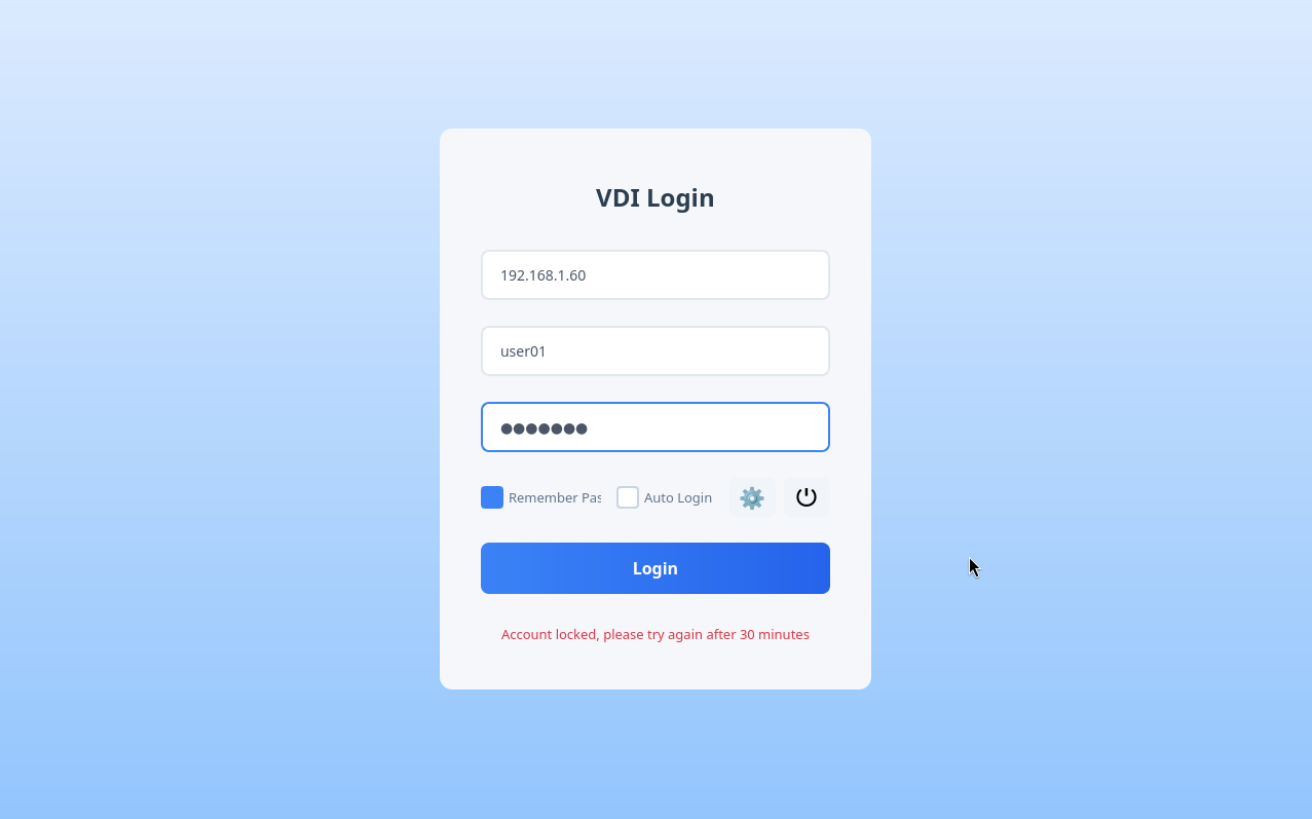
Entering an incorrect password 5 times will lock the user. Please contact the administrator to unlock.